Key things to note
· You should ONLY use the Google Chrome browser to access Lifetrack. Other browsers do not have full HTML 5 support yet.
· You must use 64 bit Chrome.
· You must be on the latest Updated version of Chrome.
· This is because the Lifetrack Software runs ENTIRELY in the Chrome Browser with no plugins or frameworks.
Recommended Radiologist Hardware:
· Use an Intel i7 6th generation or later CPU.
· Best with 8 GB RAM or more
· Best with an SSD hard drive.
· Best with Dual Monitors - we prefer QHD resolution (2560x1440)
· Note it will work on any 64 bit OS as long as it runs Google Chrome
· Will run on Android, Linux, Windows, and Mac OS. Since iOS does not support a Full Chrome browser - it will not run on iOS.
Other Tips:
· It is good to clear the Chrome History (CTRL H) once in a while to make certain that the latest version of the software is loaded to the browser.
· If a page fails to load properly - try pressing CTRL F5 to force a reload - this often clears the cache and forces a page to reload from scratch.
Guide
Viewer Tools
If you are having issues in using the viewer measurement tools:
- Check the Google Chrome zoom settings
- This should be set to default 100% (CTRL+0)
- Check the Windows display settings
- Windows 7
- Click Start. Type Font Size in the search box, and press enter
- In the Display window that appears, choose Smaller – 100% (default)
- Click Apply button
- Windows 8
- Press Windows Key + D to show Windows 8 desktop mode
- Right-click any blank area of your desktop and Select Personalize
- Select Display
- Select the default text
- Click Apply
- Windows 10
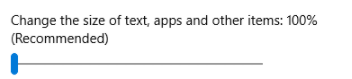
- Right-click any blank area of your desktop and select Display settings
- In the scroll bar, make sure that it is defaulted to 100%